Create or unlock account
- Open LumaV
- Use Face ID or device passcode
- Enter profile basics
You land in the private app workspace.
Use this page when you need the shortest path through the iPhone app or the LumaVault.ai website. It focuses on the everyday workflows most users need first.
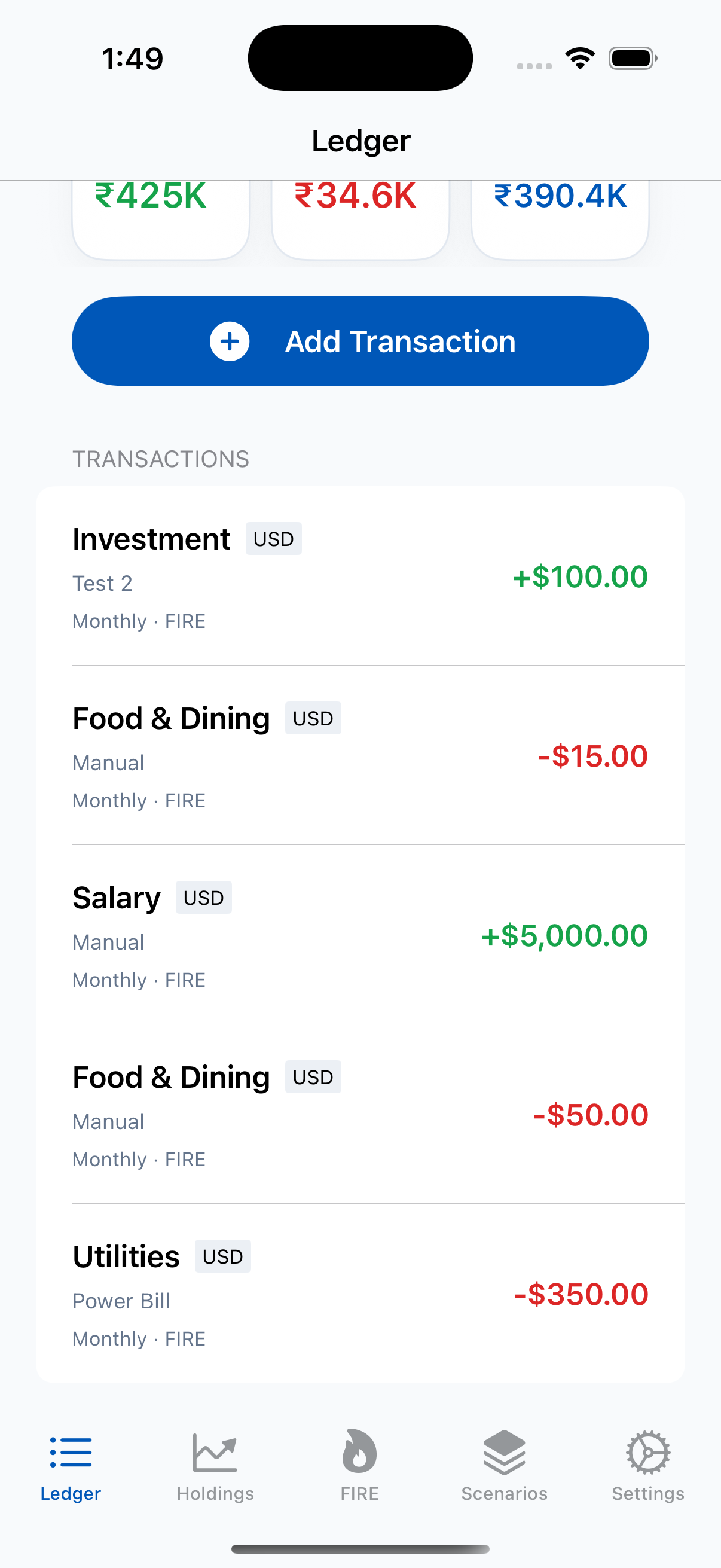
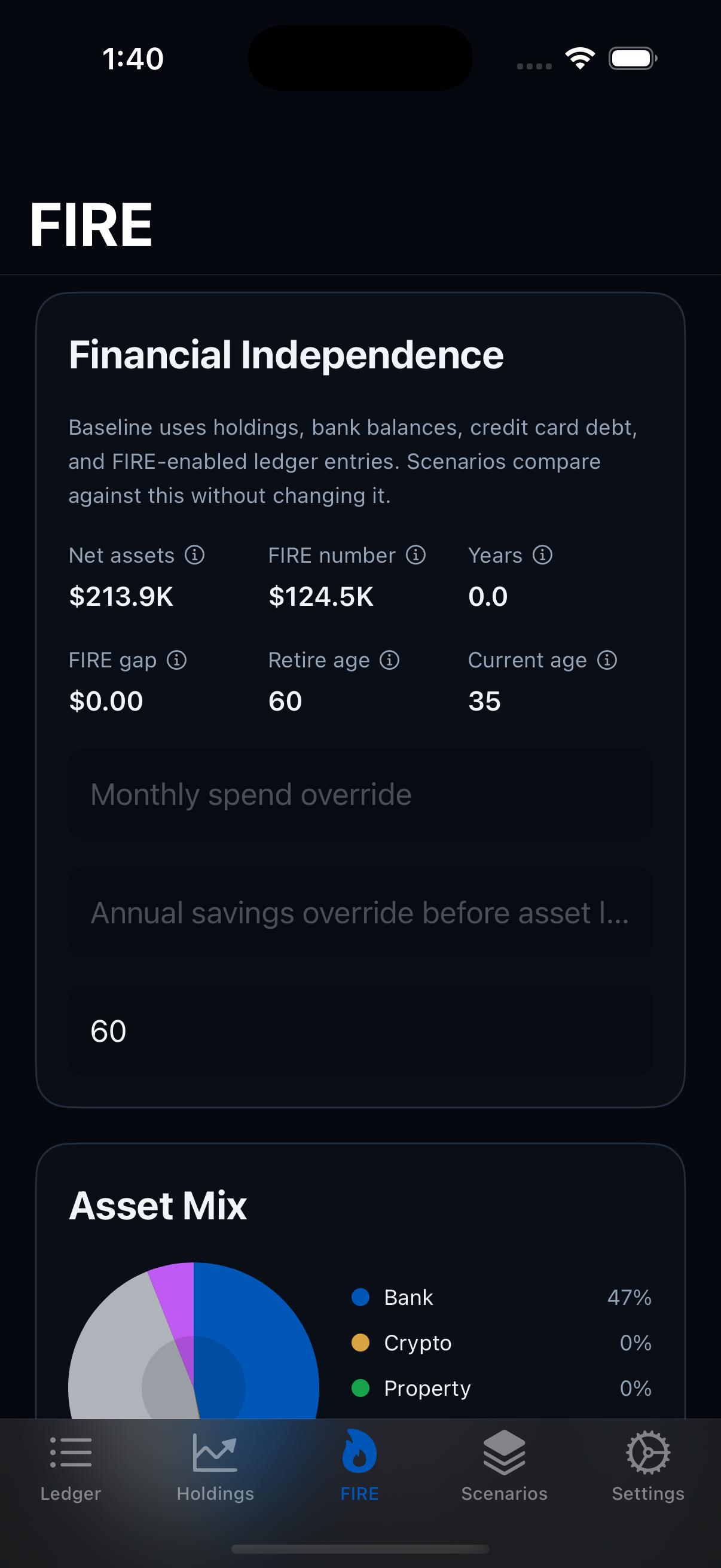

These are the main things a user does inside LumaV on iPhone.
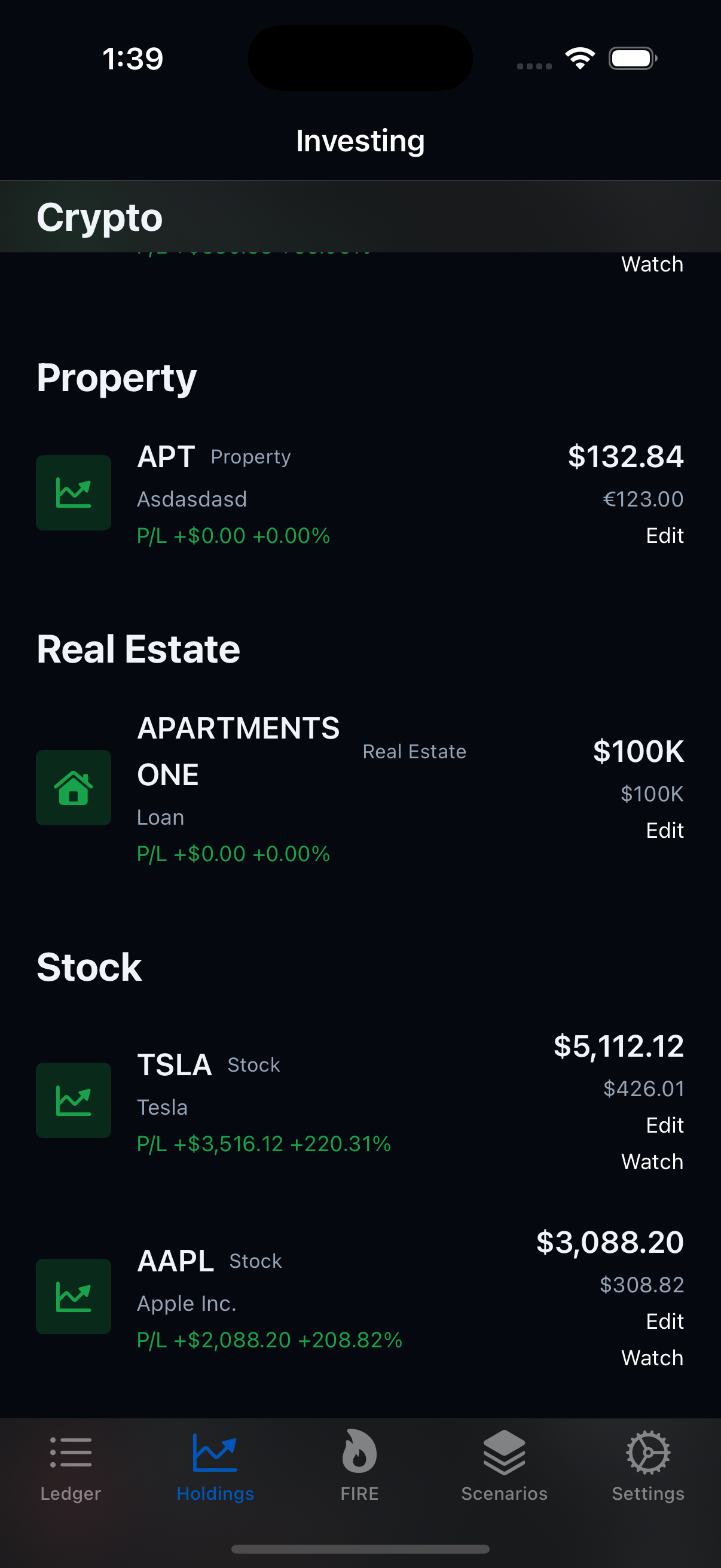
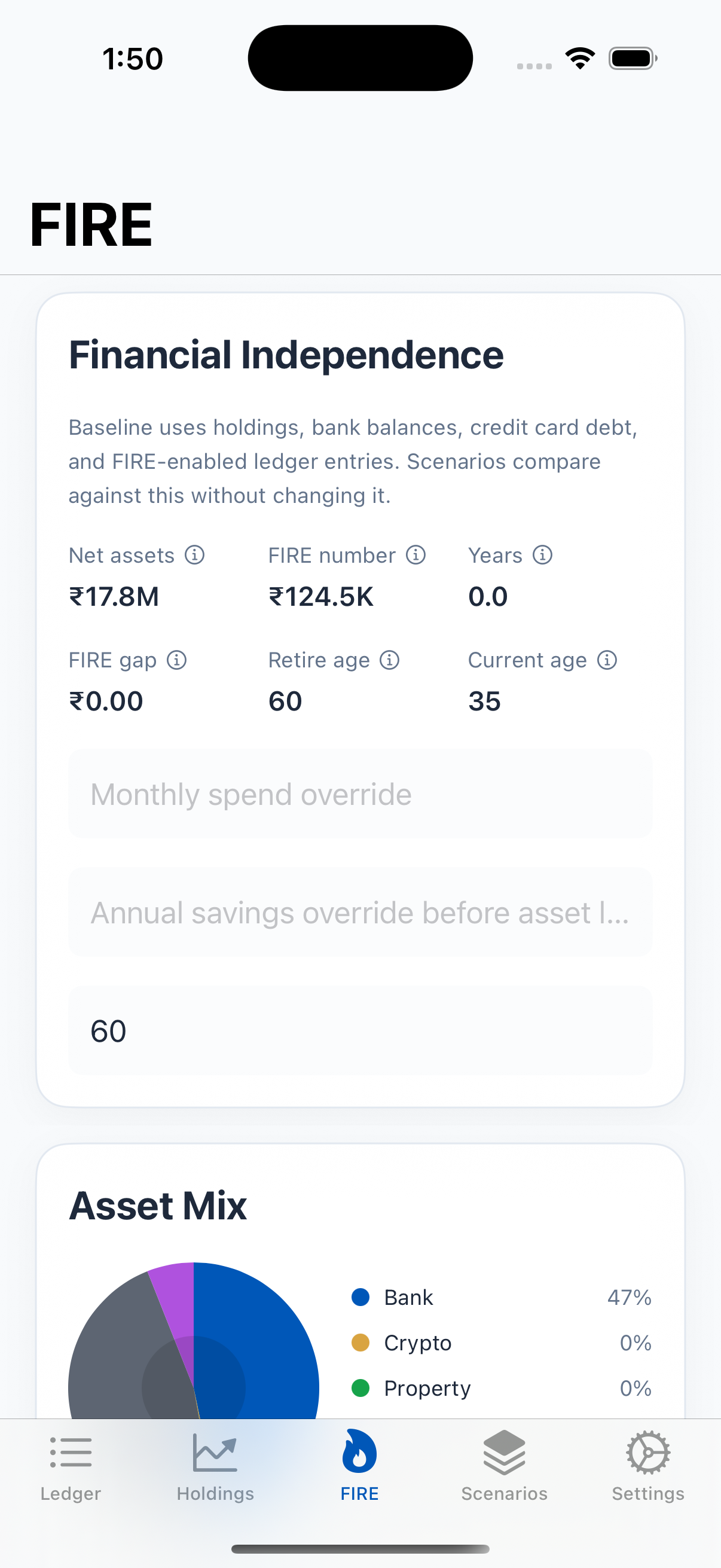
You land in the private app workspace.
See assets, debts, FIRE progress, and planning signals together.
Cash flow updates FIRE and safe-to-spend math.
Your portfolio and debt picture becomes visible.
LumaV shows what affects work-optional timing.
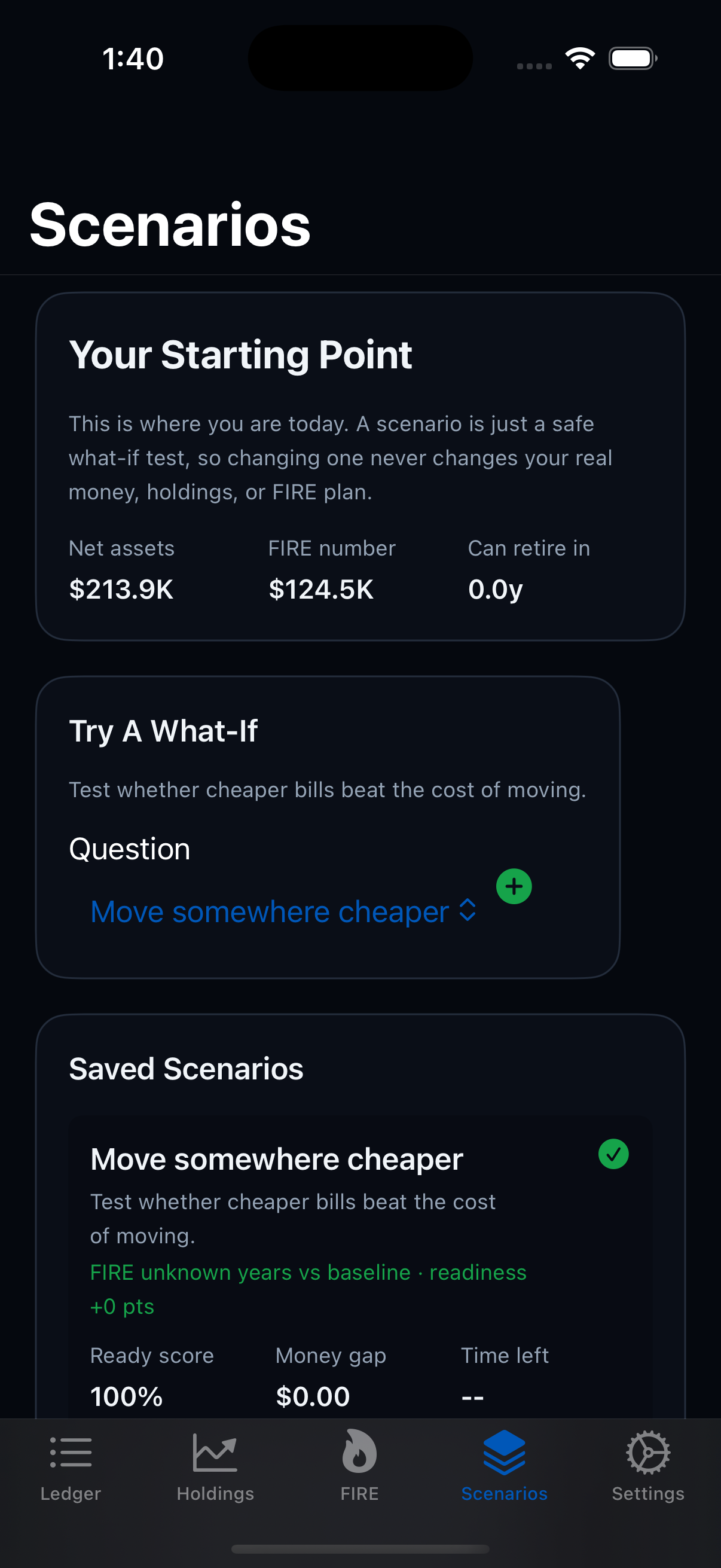
Model moves, children, housing, sabbaticals, and market shocks.
Parents, guardians, or custodians can keep authorized supervised money guidance organized.
Normal viewing uses saved data first, so the app stays fast.
Use the browser view when you want more room to review numbers.
Use this for privacy review, account control, and App Store deletion needs.
Support can help with setup, bugs, and feature requests.
These are the main things users can do from the web experience.

Read the product overview, privacy policy, terms, support information, and account deletion instructions before using the app or dashboard.
Sign in, review your overview, ledger, holdings, FIRE progress, household context, advisor-safe summaries, and scenarios. Demo data stays available until you save your own view.
After editing the dashboard, save web changes so the iPhone app can pull the same planning snapshot later.
Use the dashboard as a conversation view for household planning. Share only what you are comfortable discussing.
Use support links for bugs and questions. Use the deletion page for local app deletion steps and cloud data deletion contact details.
Use the app normally from local data. Sync is visible and intentional.
LumaV provides planning tools and education, not financial, tax, legal, or investment advice.
Only share recommendations or scenario details with people you trust.
Email [email protected] for product help.