Updated May 30, 2026

How to use LumaV, step by step.

Use this page when you need the shortest path through the iPhone app or the LumaVault.ai website. It focuses on the everyday workflows most users need first.
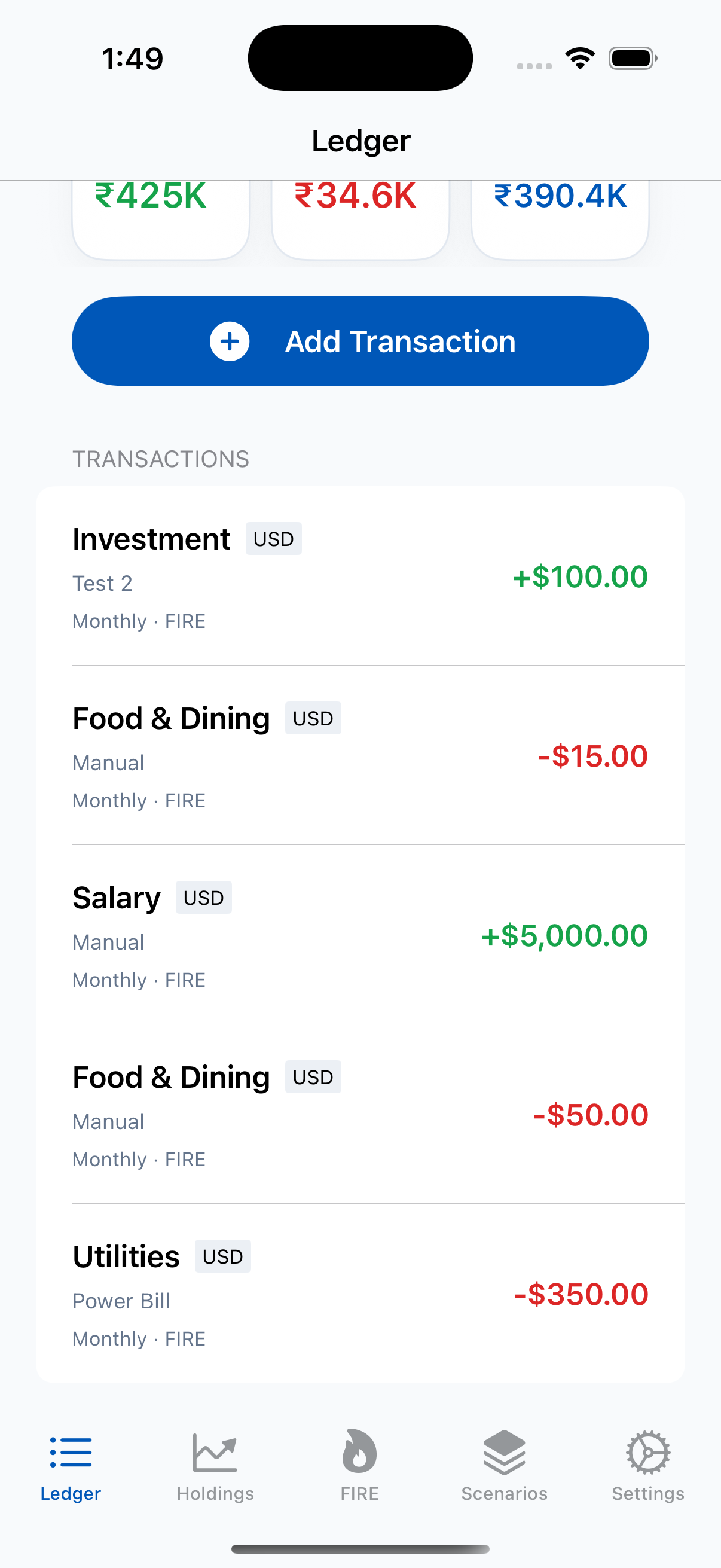
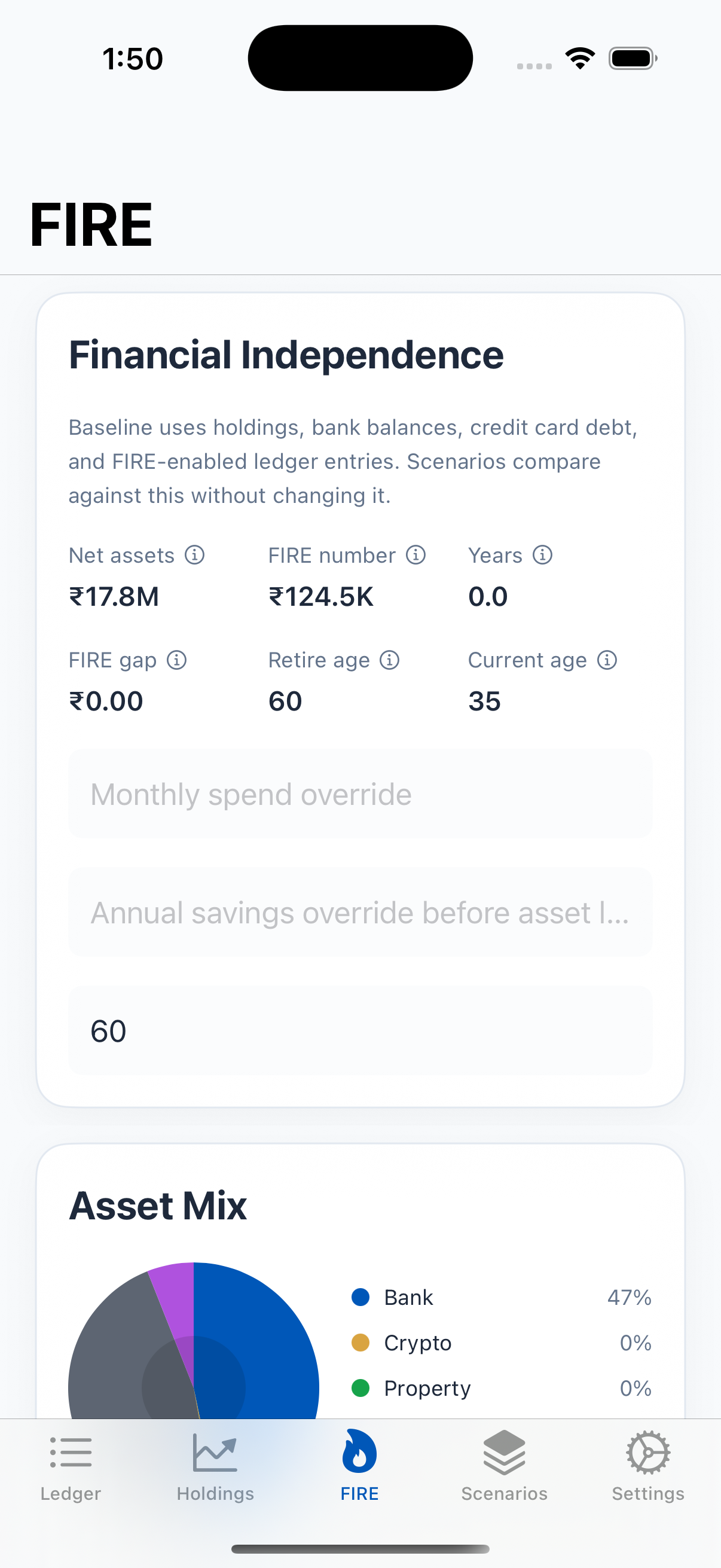
LumaV light theme iPhone ledger screen
Light theme
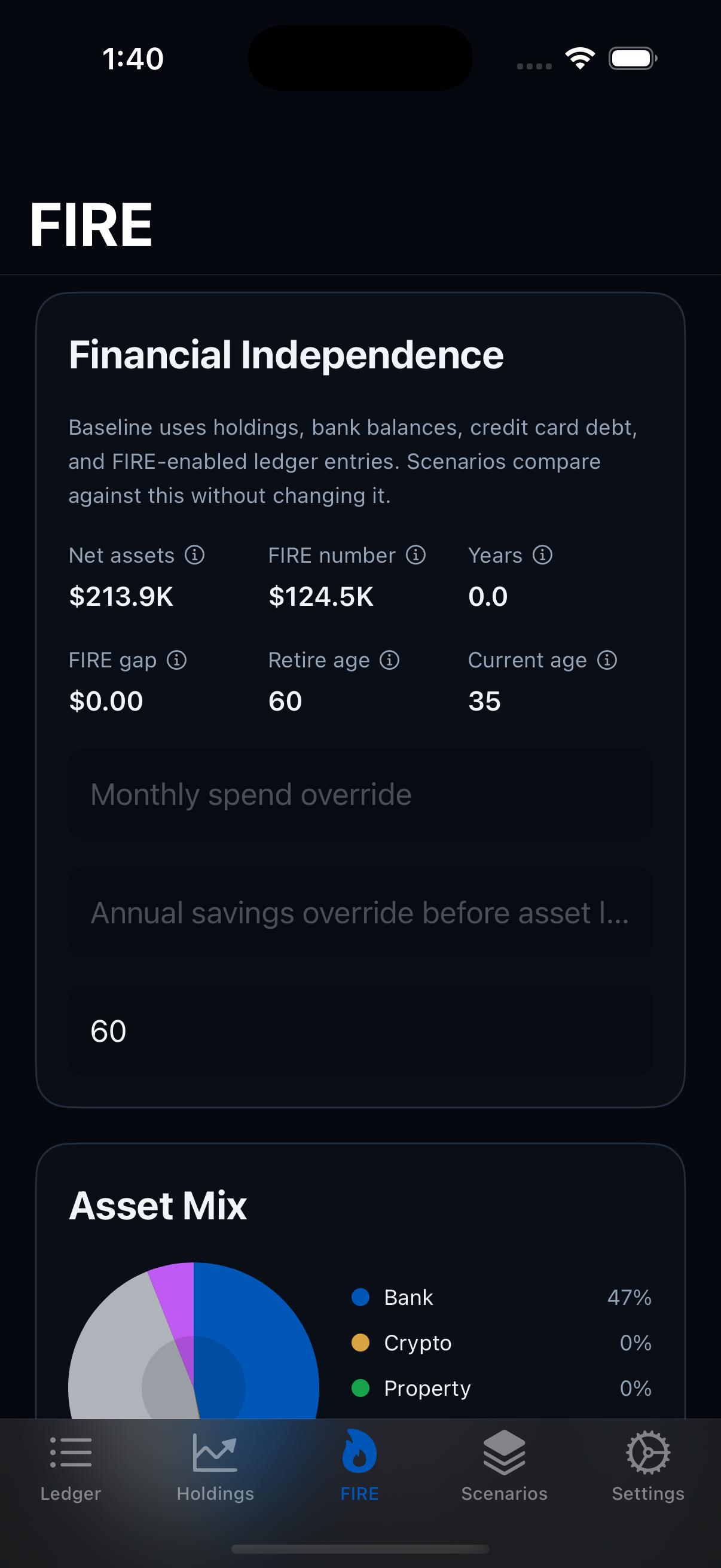
LumaV dark theme iPhone FIRE screen
Dark theme
LumaVault.ai dashboard visual guide
Website dashboard
iPhone app

Everyday app workflows

These are the main things a user does inside LumaV on iPhone.
LumaV light theme ledger overview
Start with cash flow.
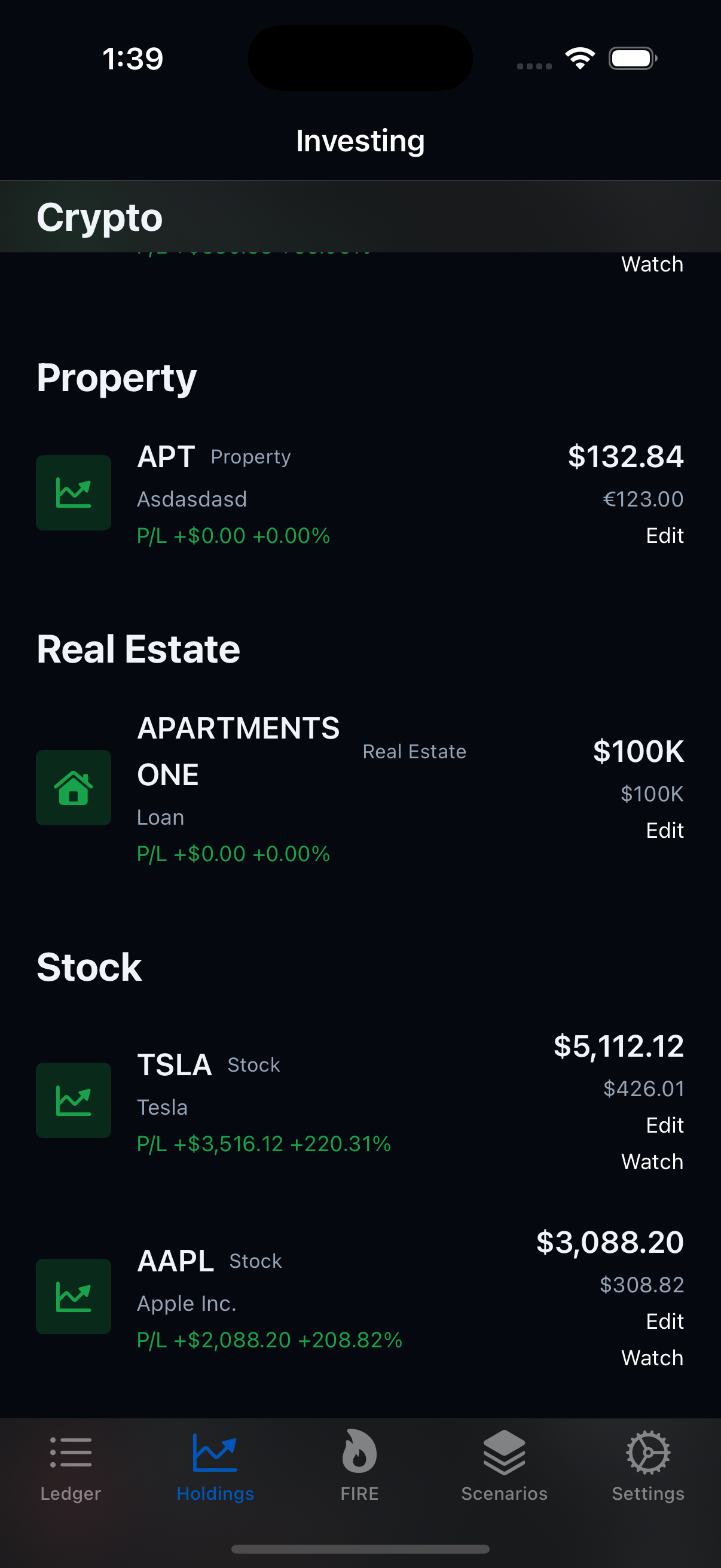
LumaV holdings screen
Review assets and debts.
LumaV light theme FIRE screen
Check the FIRE path.
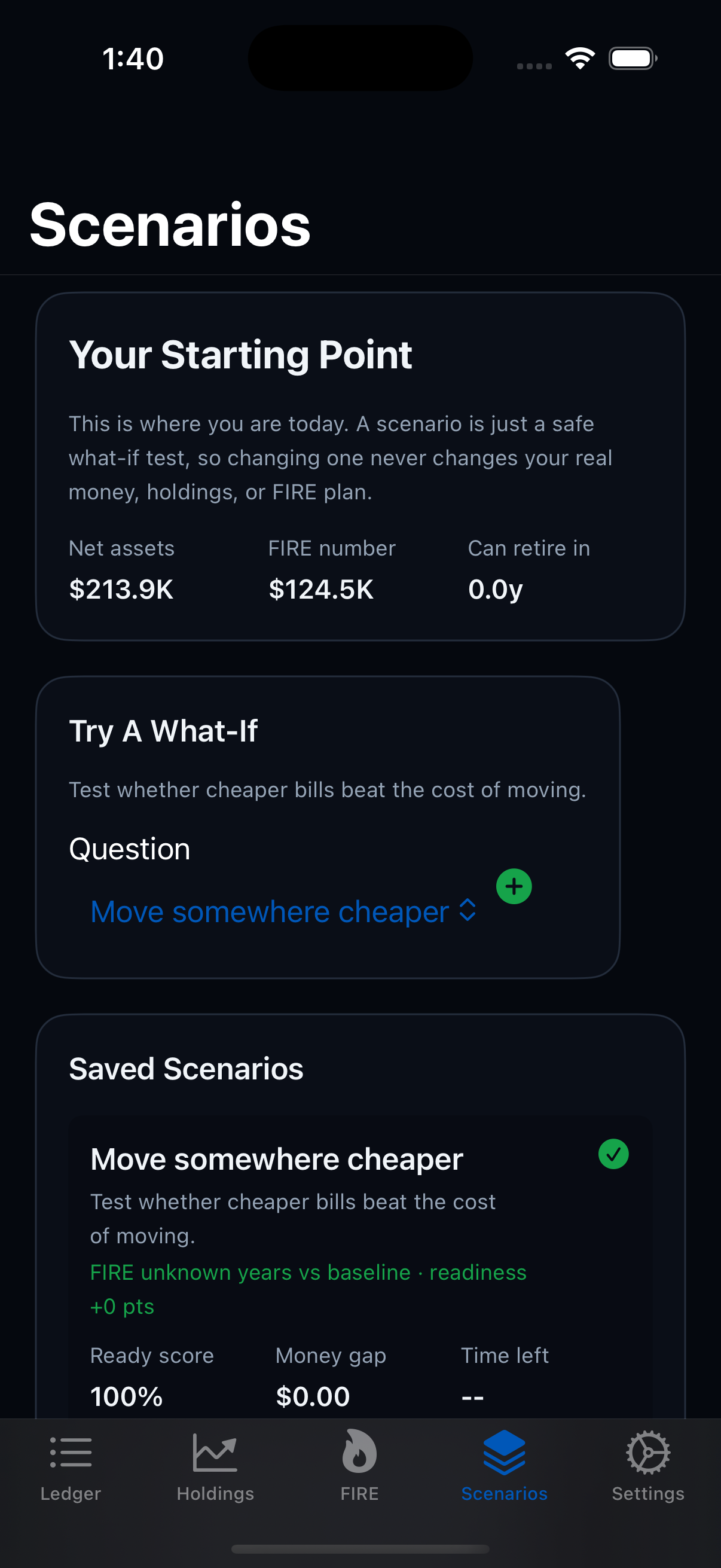
LumaV scenarios screen
Compare life decisions.
01

Create or unlock account

  1. Open LumaV
  2. Use Face ID or device passcode
  3. Enter profile basics

You land in the private app workspace.

02

Check 360 view

  1. Open 360
  2. Review net worth rings
  3. Tap a signal for detail

See assets, debts, FIRE progress, and planning signals together.

03

Add income or expense

  1. Go to Ledger
  2. Tap Add Transaction
  3. Choose category and recurrence

Cash flow updates FIRE and safe-to-spend math.

04

Track holdings and debts

  1. Open Holdings
  2. Add stock, crypto, real estate, loan, or card
  3. Review allocation and value

Your portfolio and debt picture becomes visible.

05

Review FIRE number

  1. Open FIRE
  2. Check readiness and gap
  3. Review income, expense, and debt drivers

LumaV shows what affects work-optional timing.

06

Run a scenario

  1. Open Scenarios
  2. Create a what-if
  3. Compare against baseline

Model moves, children, housing, sabbaticals, and market shocks.

07

Guide a family member

  1. Open Settings
  2. Add a family member
  3. Draft a recommendation

Parents, guardians, or custodians can keep authorized supervised money guidance organized.

08

Sync when needed

  1. Open Settings
  2. Check last updated time
  3. Tap Sync Now if needed

Normal viewing uses saved data first, so the app stays fast.

09

Open the website dashboard

  1. Go to LumaVault.ai
  2. Open Dashboard
  3. Sign in when prompted

Use the browser view when you want more room to review numbers.

10

Export or delete cloud data

  1. Open Settings
  2. Choose Export or Delete
  3. Confirm the action

Use this for privacy review, account control, and App Store deletion needs.

11

Get help

  1. Open Settings or Support
  2. Send bug details
  3. Include screen and device info

Support can help with setup, bugs, and feature requests.

LumaVault.ai

Website workflows

These are the main things users can do from the web experience.

Website login approval illustration
Sign in or approve browser access.
Website dashboard illustration
Review a clean dashboard view.
Website overview

Start from the public site

Read the product overview, privacy policy, terms, support information, and account deletion instructions before using the app or dashboard.

Home Privacy Terms Support
Dashboard

Use the web dashboard

Sign in, review your overview, ledger, holdings, FIRE progress, household context, advisor-safe summaries, and scenarios. Demo data stays available until you save your own view.

Login Dashboard Review Sync intentionally
Save changes

Save website edits

After editing the dashboard, save web changes so the iPhone app can pull the same planning snapshot later.

Edit Save Open iPhone Pull changes
Review plan

Talk through a plan

Use the dashboard as a conversation view for household planning. Share only what you are comfortable discussing.

Open view Review numbers Discuss choices Decide next step
Account control

Request help or deletion

Use support links for bugs and questions. Use the deletion page for local app deletion steps and cloud data deletion contact details.

Support Bug report Delete account Privacy contact
Privacy & safety

Simple rules to remember

Local first

Use the app normally from local data. Sync is visible and intentional.

No advice claim

LumaV provides planning tools and education, not financial, tax, legal, or investment advice.

Share carefully

Only share recommendations or scenario details with people you trust.